

Deskripzioa
FarEye – Shipping and Tracking links your store to the FarEye platform so orders placed in WooCommerce are processed for shipment, carrier allocation and delivery tracking — and so the tracking numbers FarEye generates flow straight back onto your WooCommerce orders.
The plugin is free. FarEye does not charge for the plugin and no payment is taken through it. Shipping charges are paid to the carrier.
Features:
- One-click connection using WooCommerce Application Authentication — no API keys to copy by hand
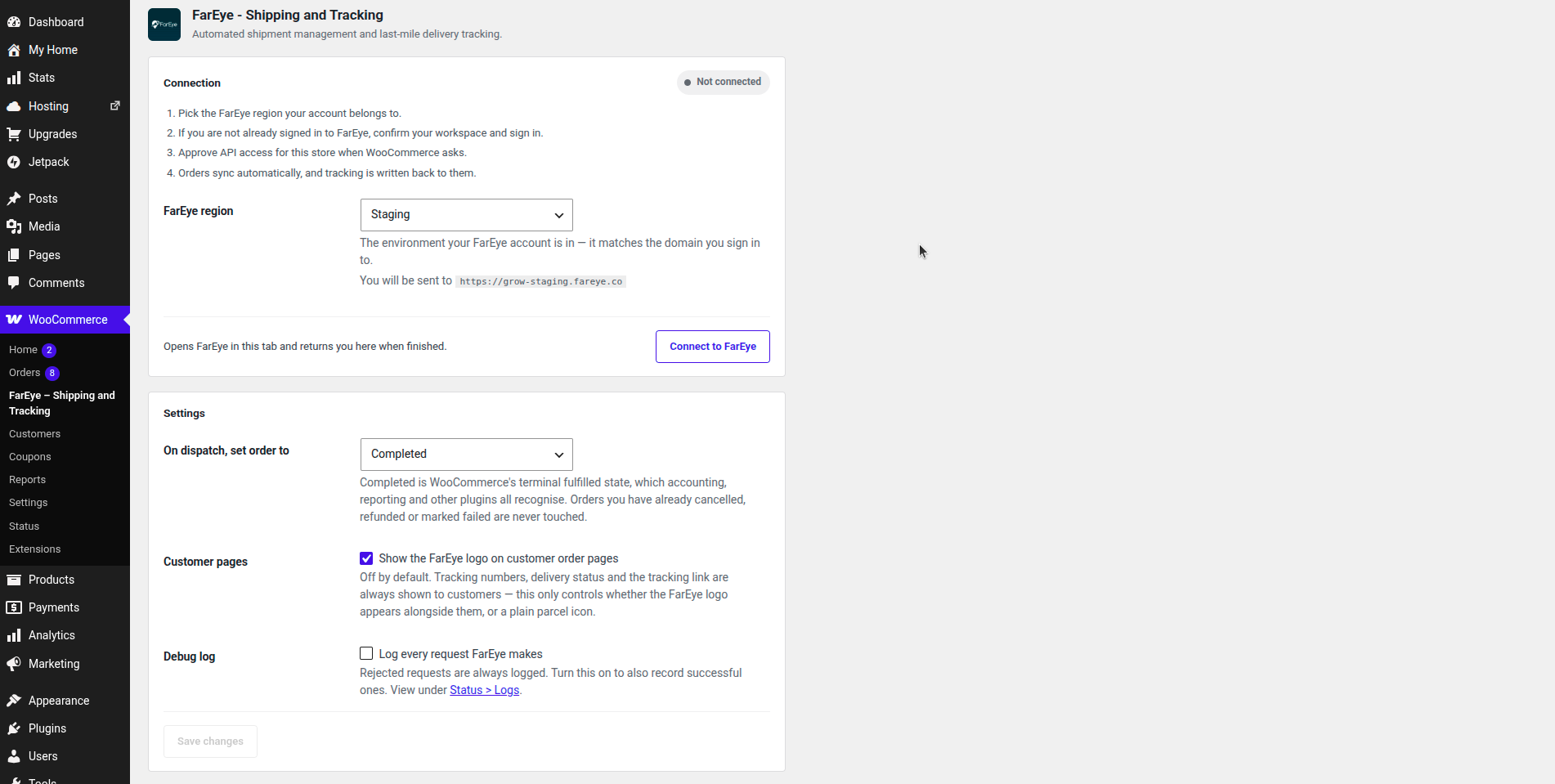
- Choice of FarEye region, so the store connects to the environment your account lives in
- Tracking number, tracking link, carrier and label URL written back to the order when FarEye generates a shipping label
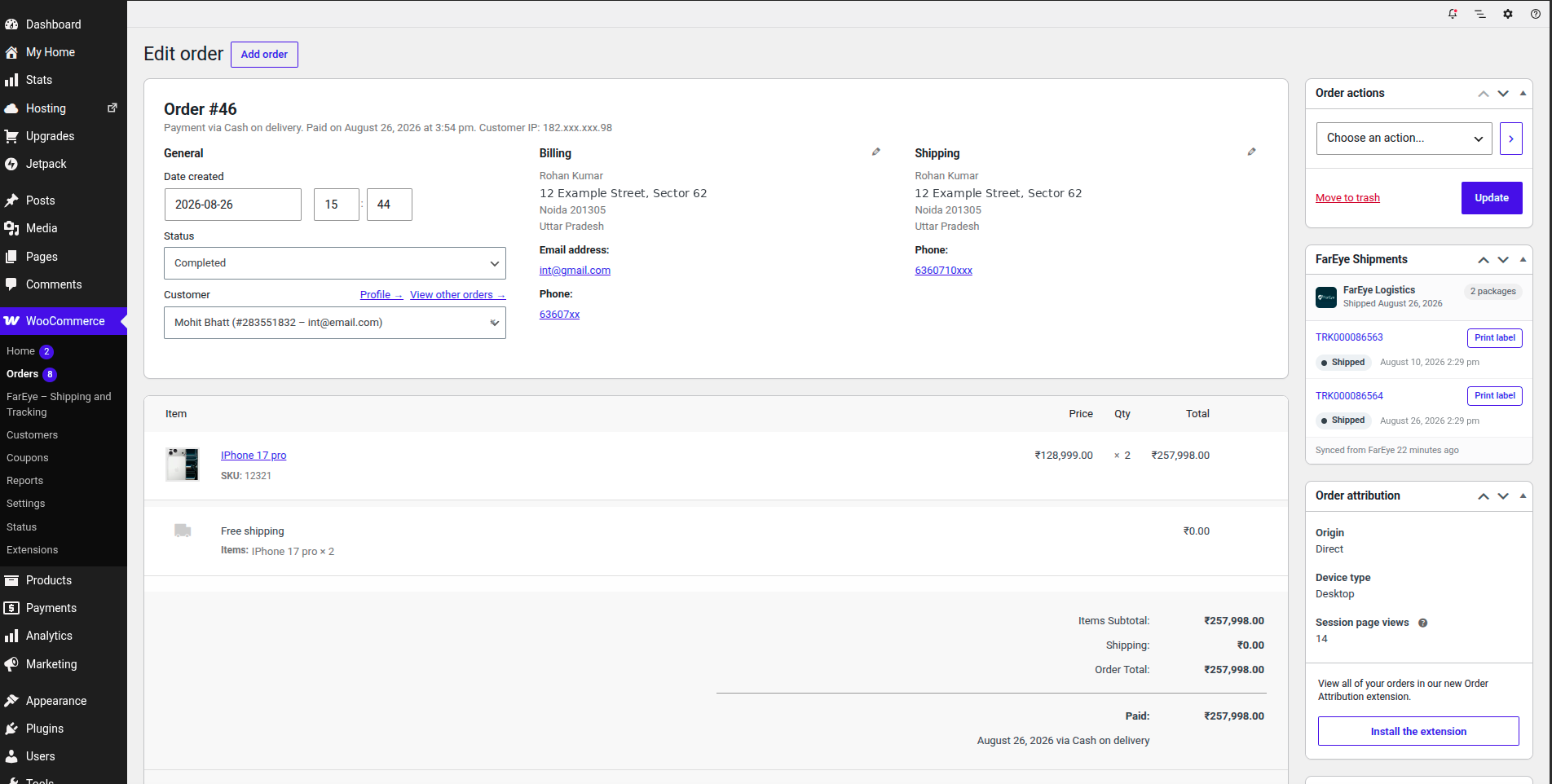
- Multiple tracking numbers per order, for orders that ship as several packages, all under the order’s single carrier and one tracking link
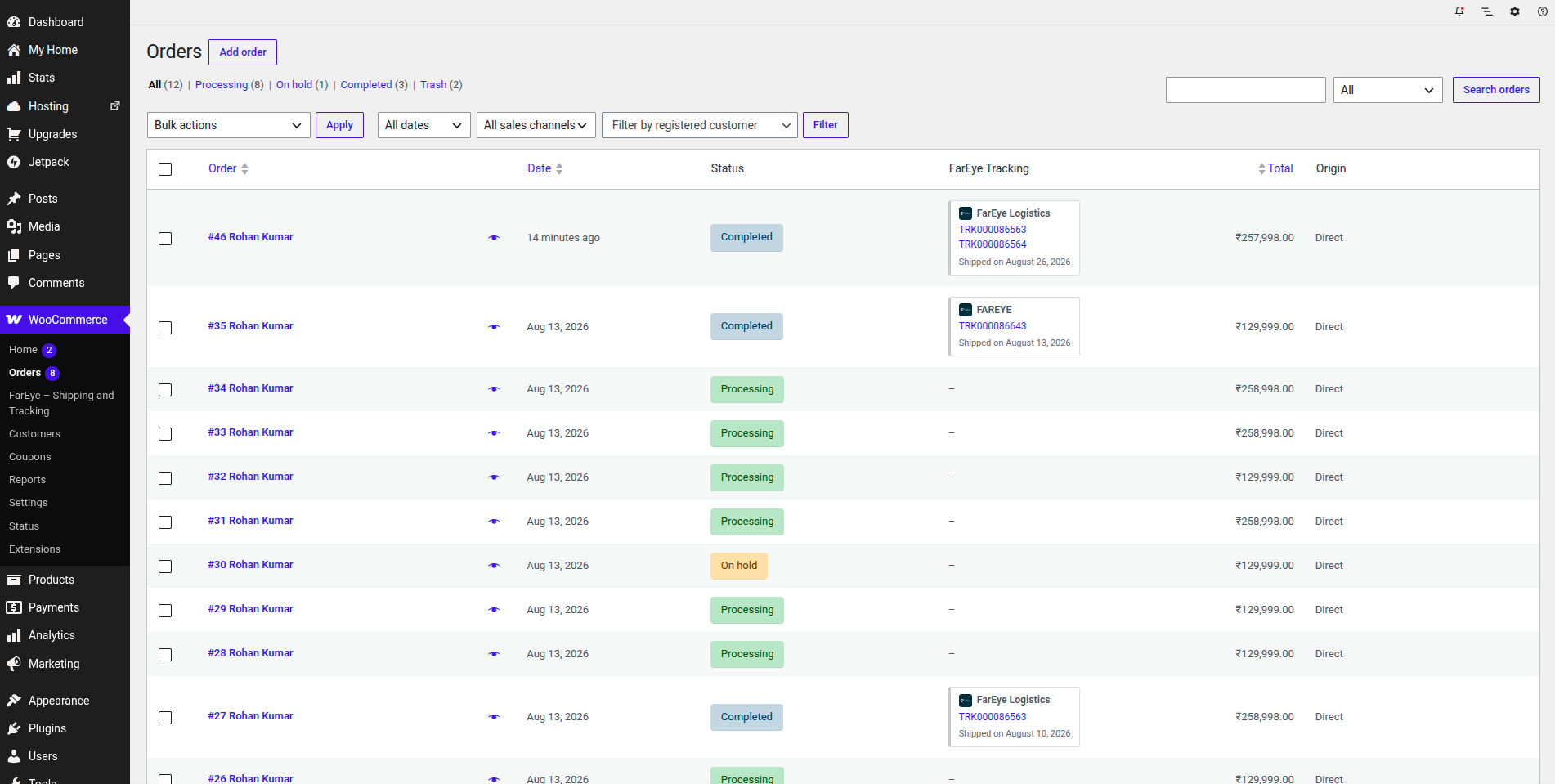
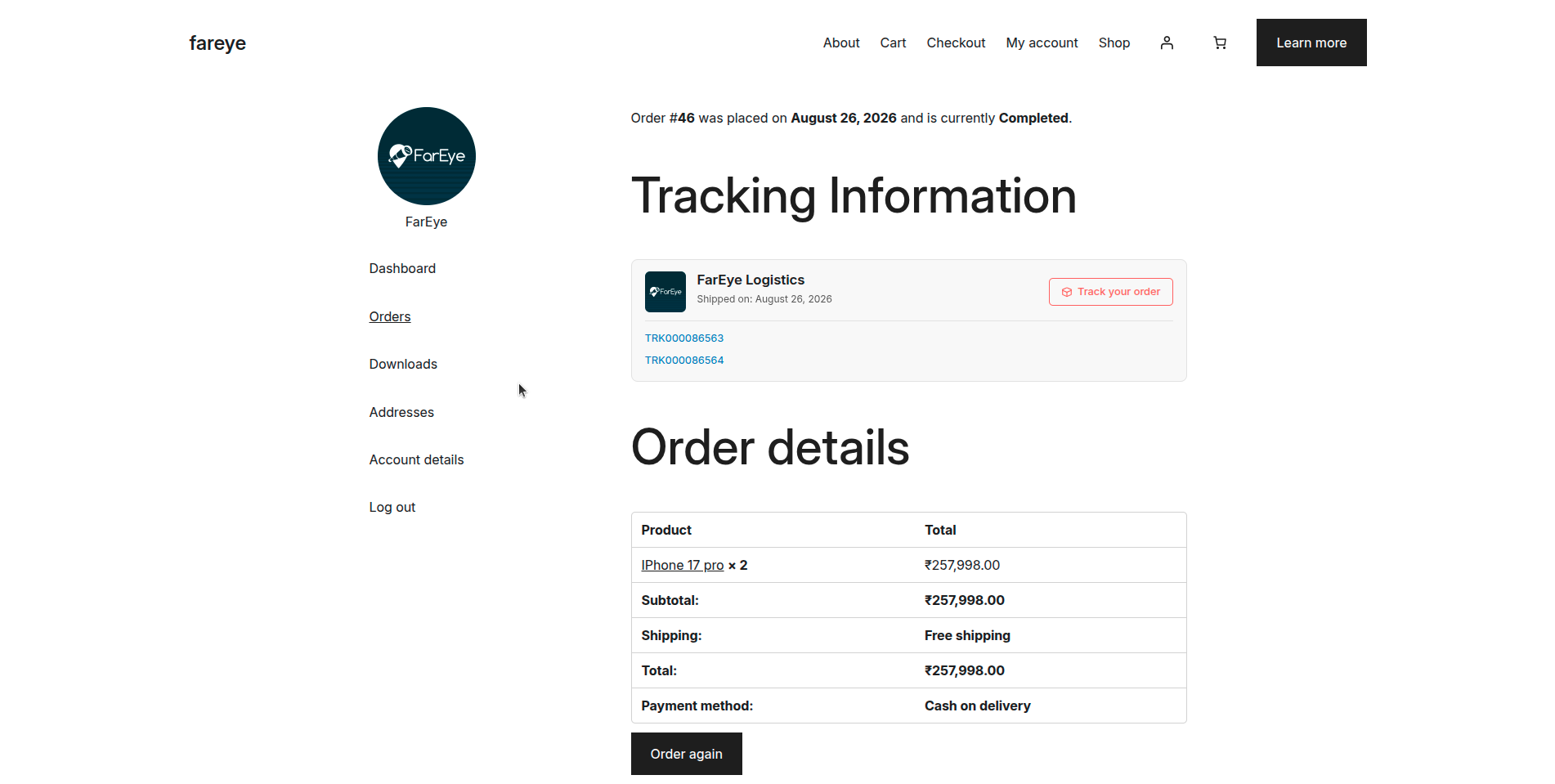
- Tracking shown to staff on the order screen and in the orders list, and to customers in order emails and My Account
- Order status updates: an order is completed once FarEye dispatches it
- Order search by tracking number
- Compatible with High-Performance Order Storage (HPOS) and the Cart and Checkout blocks
Requirements:
- WooCommerce 6.0 or higher
- An active FarEye merchant account
External services
This plugin connects your store to FarEye, a third-party shipment management and delivery tracking service operated by FarEye Technologies. FarEye is required for the plugin to function; the plugin provides no shipment functionality on its own.
What the connection does. When you click “Connect to FarEye”, you are taken to the FarEye portal for the region you select, and then through WooCommerce’s built-in Application Authentication screen, where you approve read/write API access for FarEye. WooCommerce issues the API credentials to FarEye directly — the plugin itself never handles or stores them.
What data is shared. Using those credentials, FarEye reads order data from your store — order numbers and dates, line items, order totals, and customer shipping and contact details — in order to book shipments and generate carrier labels. FarEye then writes shipment data back onto your orders: carrier, tracking numbers, tracking links, label URLs and delivery status events. Your store URL is sent to FarEye when the connection is first established.
When it happens. No data is transmitted until you complete the connection and approve API access. The plugin makes no outbound requests of its own; all transfer happens between FarEye’s servers and WooCommerce’s REST API, under the credentials you granted.
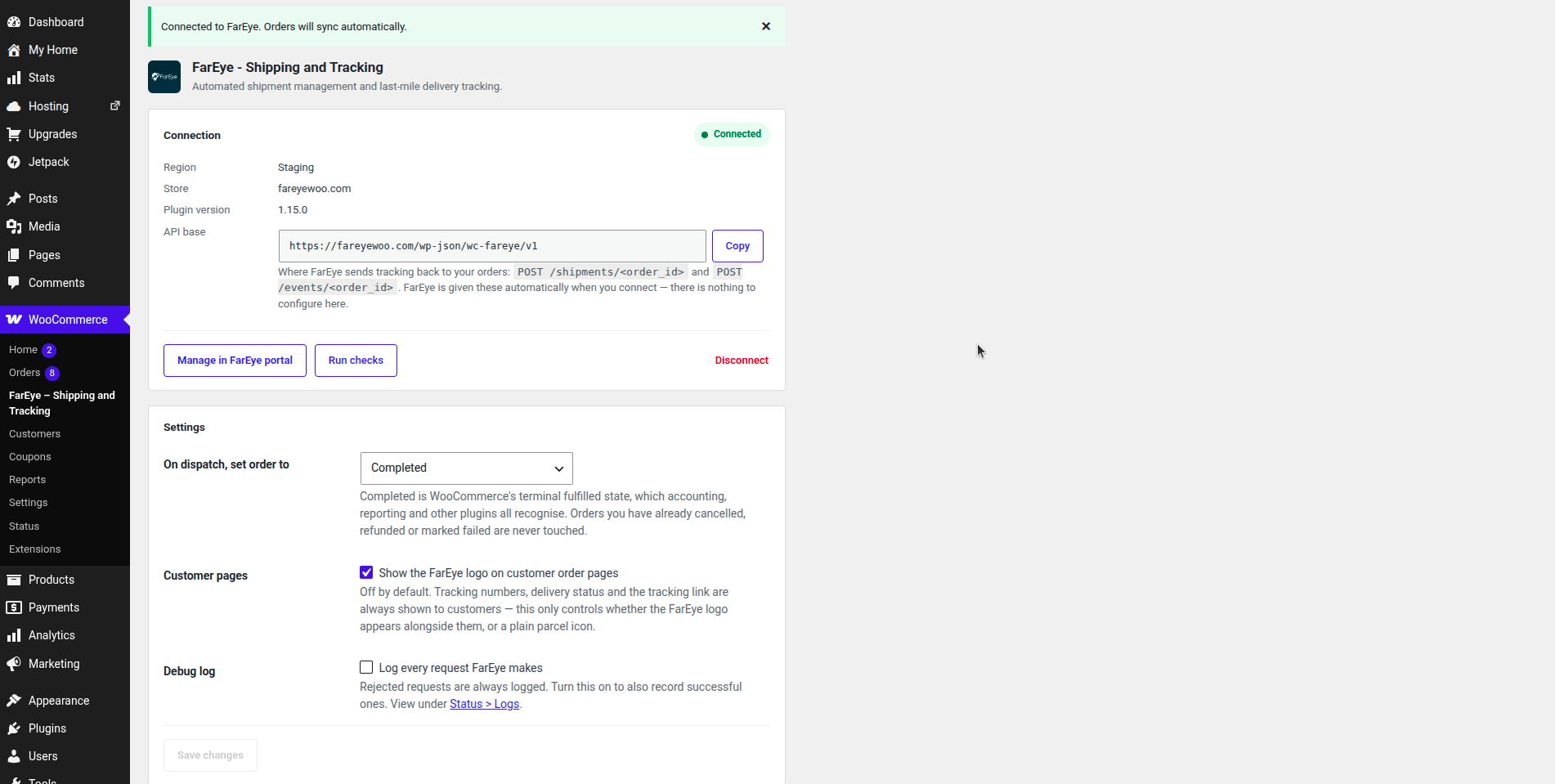
Stopping it. Disconnecting from WooCommerce > FarEye stops further order processing. To invalidate the credentials as well, revoke the API key under WooCommerce > Settings > Advanced > REST API.
Use of the FarEye service is subject to:
- FarEye Terms and Conditions: https://fareye.com/terms-and-conditions
- FarEye Privacy Policy: https://fareye.com/privacy/privacy-policy
Pantaila-argazkiak
Instalazioa
- Upload the
fareye-shipping-and-trackingfolder to/wp-content/plugins/. - Activate the plugin through the Plugins menu in WordPress.
- Go to WooCommerce > FarEye.
- Choose your FarEye region and click Connect to FarEye.
- If you are not already signed in to FarEye, you are asked to confirm your workspace and sign in. If you are, this step is skipped.
- WooCommerce then asks you to approve API access for FarEye — approve it.
- You are returned to this page, which now shows your store as Connected.
MEG
-
Does the plugin cost anything?
-
No. The plugin is free and takes no payment. You pay the carrier for shipping. Using the FarEye service requires a FarEye account.
-
Which FarEye region do I choose?
-
The environment your FarEye account is in — it matches the domain you use to sign in to the FarEye portal.
-
What permissions does the plugin request from WooCommerce?
-
read_write scope, so FarEye can read orders and write tracking details back to them.
-
Where do the tracking details appear?
-
On the order edit screen under FarEye Shipments (including a link to the carrier label), in the orders list, in the customer’s order emails, and on My Account > Orders.
-
Can FarEye change my order statuses?
-
Yes. Order status updates are on by default: an order is set to Completed once FarEye dispatches it, which is WooCommerce’s own “nothing further to do” status. Orders you have already cancelled, refunded or marked failed are never touched. To manage order status yourself, untick the option in WooCommerce > FarEye.
-
My order has several packages. Will it show several carriers?
-
No. An order ships with one carrier however many packages it takes, so the carrier, dispatch date and tracking link are shown once and every tracking number is listed beneath them.
-
When does an order become Completed?
-
When FarEye dispatches it. FarEye books the whole consignment before it tells your store, so every package arrives together in a single update — an order is never left half-shipped.
-
How do I disconnect?
-
Go to WooCommerce > FarEye and click Disconnect. Revoke the API key separately under WooCommerce > Settings > Advanced > REST API if you want the credentials invalidated too.
Berrikuspenak
Ez dago berrikuspenik plugin honentzat.
Laguntzaileak eta Garatzaileak
“FarEye – Shipping and Tracking” software librea da. Ondoko pertsonek egin dizkiote ekarpenak plugin honi.
Laguntzaileak
Itzul zaitez FarEye – Shipping and Tracking zure hizkuntzara.
Garapena interesatzen zaizu?
Araka kodea, begiratu SVN biltegia edo harpidetu garapen erregistrora RSS bidez.
Aldaketen loga
1.15.1
- The settings screen’s JavaScript now loads from assets/js/fareye-admin.js through wp_enqueue_script() instead of inline blocks.
1.15.0
- Dispatched orders are now set to Completed rather than a custom Shipped status. Completed is WooCommerce’s terminal fulfilled state, so accounting, reporting and other plugins all see it; the custom status was invisible to them.
- Orders already cancelled, refunded or failed are never moved by a shipment update.
- The shipment endpoint now takes the order ID in the URL and every package in one call: POST wc-fareye/v1/shipments/. Repeat calls for the same order are corrections rather than additions, and a retry keeps each package’s tracking history.
- Removed the custom Shipped order status.
1.14.0
- One carrier per order: the first shipment settles the order’s carrier and dispatch time, and later shipments add tracking numbers beneath them instead of creating a second carrier entry.
- Added support for
shipping_timeon the shipment payload, used for the “Shipped on” date. - A shipment push for a tracking number already on the order now revises only its tracking link and label URL.
- Order status updates are on by default, and the setting is reachable whether or not the store is connected.
- Removed two unused class files.
1.9.0
- Added POST wc-fareye/v1/events — one status update per call, appended to that package’s journey.
- Tracking journey shown under each tracking number, with delivered in green and cancelled or failed in red.
- Shipment pushes upsert again: a call adds new tracking numbers and updates existing ones, and empty values no longer blank stored ones.
1.2.0
- Tracking now appears above the order details on the customer’s order page, as a card per shipment with the carrier, tracking link, dispatch date and a Track Your Order button.
- The admin orders-list column shows the carrier, tracking link and dispatch date instead of bare tracking numbers.
- Shipment pushes now replace the tracking on an order rather than merging into it; the response and order note report what was removed.
1.1.0
- Added the shipment writeback REST API (
wc-fareye/v1/shipments) — tracking number, tracking URL, carrier and label URL, with support for multiple packages per order. - Added tracking display for staff and customers.
- Added optional order status updates, including a Shipped status.
- Added order search by tracking number.
- Fixed the Connect button, which was nested inside WooCommerce’s own settings form and so never started the connect flow.
1.0.0
- Initial release.